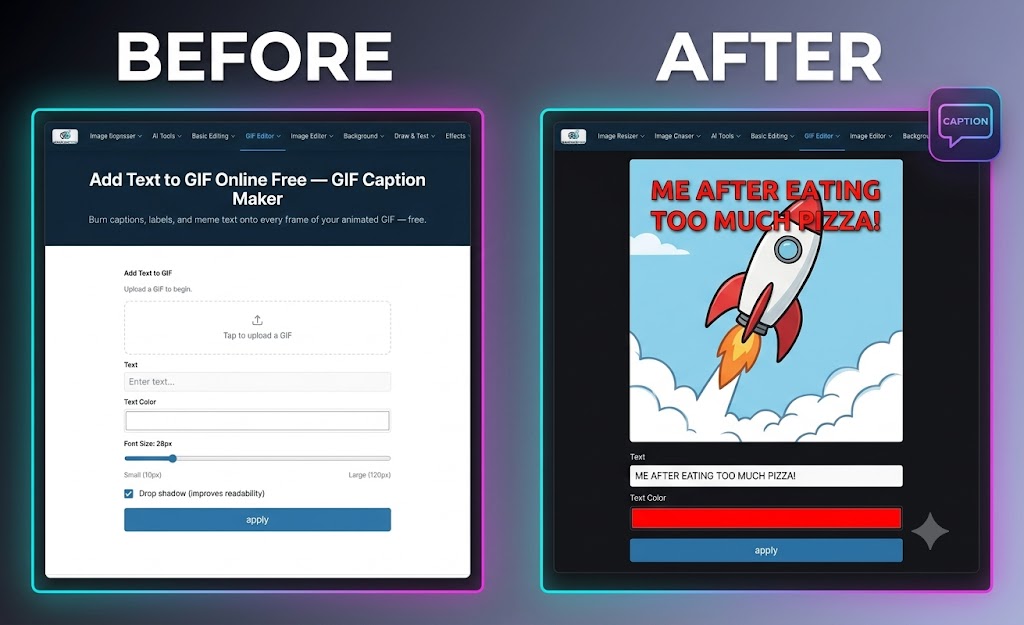
Adding text overlays, captions, and meme labels to animated GIFs is one of the quickest ways to increase engagement on social media or create relatable reaction content. Instead of opening complex video editing software, you can burn text directly onto every frame of your animated GIF in seconds using lightweight browser tools.
With the MagicPicPro GIF Caption Maker, you can customize text, adjust font sizing, apply drop shadows, and position captions exactly where you want them — completely free, with zero account sign-ups or watermarks.
Step-by-Step Guide: How to Add Text to a GIF
- Upload Your GIF — Drag and drop your animated GIF into the MagicPicPro GIF Text Editor canvas.
- Enter Your Caption — Type your custom text or meme caption into the text box.
- Customize Style and Placement — Choose your preferred text color, adjust the font size slider, and toggle drop shadows to maximize readability against moving backgrounds. Drag the text overlay directly on the preview box to place it perfectly.
- Apply and Download — Click Apply Text to burn the caption onto every single frame simultaneously, then export your new GIF file immediately.
Why Use Online GIF Captioning?
🔄 All-Frame Synchronization
Text burns onto every frame automatically so your message stays consistent throughout the full animation loop.
🔒 Local Browser Security
Your GIF files are processed locally on your device — they are never sent or saved to external servers.
🌐 Fully Responsive
Works smoothly across all modern web browsers on desktop computers, tablets, and mobile smartphones without software installations.
Ready to caption your GIF?
Try the GIF Caption Maker — Free