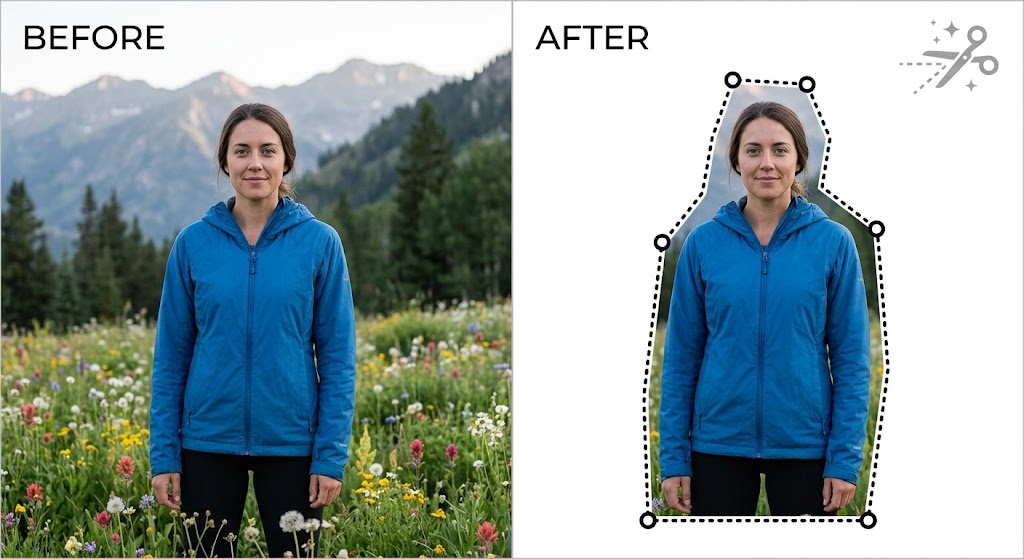
Extracting complex subjects from detailed backgrounds doesn't require expensive software or hours of meticulous tracing. Whether you're removing a portrait from a busy landscape or cutting out specific objects for a collage, flexible selection tools make custom cropping effortless.
Using the web-based Scissors Crop Tool, you can outline, select, and cut any shape freehand right inside your browser — completely free, with zero account sign-ups or software downloads required.
Step-by-Step Guide: How to Cut Out Subjects Freehand
- Upload Your Image — Drag and drop your JPEG, PNG, or WebP photo into the Scissors Crop Tool canvas.
- Trace Your Outline — Click around your target subject to place selection nodes along its contours, or draw a freehand path around the perimeter. The vector points auto-connect to isolate your subject precisely.
- Fine-Tune the Path — Adjust individual anchor points along your outline to hug tighter curves, such as hair, shoulders, or landscape details.
- Crop and Save Your Cutout — Execute the crop to remove the surrounding background. Export your isolated cutout directly to your device as a high-quality image with no added watermarks.
Why Use Online Scissors Cropping?
🔒 Complete Privacy
Image edits process locally in your browser using HTML5 Canvas technology — your sensitive photos are never sent to external servers.
✂️ Freeform Control
Unlike fixed square or rectangular crops, custom vector nodes allow you to match any subject's exact geometry.
⚡ Zero Restrictions
Work on high-res photos across desktop computers, tablets, and phones without hidden fees, credits, or subscriptions.
Ready to make precise cutouts?
Try the Scissors Crop Tool — Free